
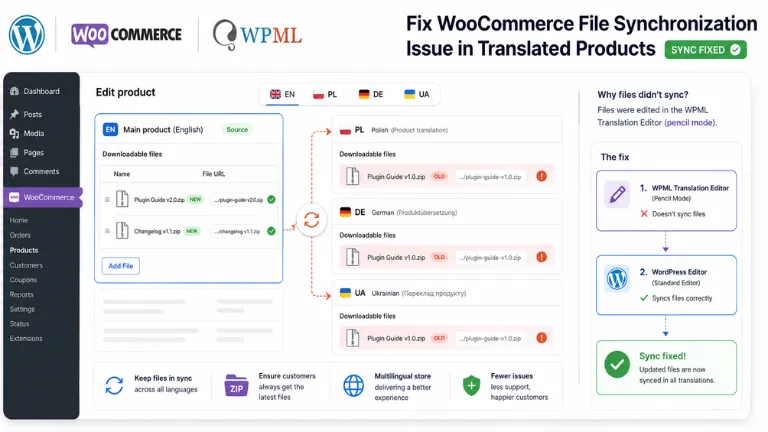
After updating a digital product in WooCommerce, the default language version received the current ZIP file, but the translations still contained a link to the previous version. Even after adding a second file, the situation did not change: the main product displayed two files, while the other language versions displayed only one.
The problem was resolved without editing the database, deleting translations, or adding custom PHP code. The solution was to change the method used to edit translated products in WPML.
Website Configuration
The website used:
- WordPress;
- WooCommerce;
- WPML Multilingual CMS;
- WPML Multilingual & Multicurrency for WooCommerce version 5.5.6;
- a simple digital product with the
VirtualandDownloadableoptions enabled; - Polish as the default language;
- translations into English, German, French, Ukrainian, and other languages.
The same set of files was supposed to be used for all languages.
How the Problem Appeared
The current file was added to the default Polish version of the product:
aroks-elementor-telegram-1.0.4-gxv3r1.zipHowever, the translated products still contained a link to the old version:
aroks-elementor-telegram-gdpq0t.zipAt first, this looked like a caching issue involving the old URL. However, after adding a second file to the default product, it became clear that the problem affected the entire list of downloadable files:
- the Polish product contained two files;
- the translated products still contained only one;
- the file name and URL matched the old version.
This meant that the translations were not receiving the current downloadable file structure.
What Was Visible in the Product Editor
In the default product version, it was possible to:
- change file names;
- enter new URLs;
- add additional files;
- manage the download limit and access expiry.
In the translated versions, the relevant fields were locked. Lock icons were displayed next to them, and WPML recommended editing the product through the translation editor.
The locked fields were not a problem by themselves. They indicated that these settings should be inherited from the default product. The actual issue was that the underlying data was not being updated.
Checking the WPML Settings
In the following section:
WooCommerce → WPML Multilingual & Multicurrency → Settingsthe following option was enabled in the Products Download Files section:
Use the same files for translationsThis is the correct mode when all language versions of a product should provide buyers with the same files.
The following option:
Add separate download files for translations when translating productswas not enabled.
The following option was also disabled in the product itself:
Use custom settings for translations download filesThe configuration therefore did not provide separate files for individual languages.
What Was Checked Before Changing the Editor
Updating the Default Product
The main product was saved again after replacing the file. The translations did not receive the new URL.
Adding a Second File
Another file was added to the Polish version. It also failed to appear in the translated products.
This test showed that the problem was not limited to a single outdated link. WPML was not updating the entire set of downloadable files.
Checking the Plugin Version
The website was using version 5.5.6 of WPML Multilingual & Multicurrency for WooCommerce. An outdated plugin version was therefore not the cause.
Saving the Settings Again
The option to use the same files for all translations was already enabled. Saving the settings again did not change the situation.
The WPML Translation Editor
The translations were opened through the WPML editor, marked with a pencil icon. Completing the translation again did not update the list of files.
The Solution
In the Translations section, the editing mode was switched from the WPML editor to the standard WordPress editor.
In this interface:
- the pencil icon opens the WPML translation editor;
- the WordPress icon opens the standard WordPress post editor.
After switching editors, the language versions of the product were opened in the standard editor and saved again.
After this:
- the current file appeared in the translations;
- the old link was replaced;
- the second file also appeared;
- the downloadable file set became identical in all language versions.
No database changes or additional code snippets were required.
Why Changing the Editor May Have Helped
WooCommerce does not store downloadable files as part of the product description. They are stored as separate structured metadata containing:
- the file name;
- the URL;
- an internal identifier;
- the file order.
They are associated with the following WooCommerce metadata field:
_downloadable_filesThe WPML editor is primarily designed to translate language-dependent content such as:
- the product name;
- the description;
- the short description;
- attributes;
- other text fields.
WooCommerce technical data is synchronized through separate mechanisms provided by WPML Multilingual & Multicurrency for WooCommerce.
In this case, completing the translation again through the WPML editor did not update the download metadata. After switching to the standard WordPress editor and saving the product, the system processed its technical settings again.
This is a technical interpretation of the observed result. Without analysing the logs and code of the specific website, it is not possible to determine exactly which internal WPML process triggered the synchronization.
Step-by-Step Solution
-
Check the default product version.
Open the product in the default language and make sure that the
Downloadableoption is enabled, all files have been added, and their names and URLs are correct. Then clickUpdate. -
Check the file settings in WPML.
Go to
WooCommerce → WPML Multilingual & Multicurrency → Settings. In theProducts Download Filessection, selectUse the same files for translationsand save the settings. -
Check the individual product settings.
The
Use custom settings for translations download filesoption should be disabled if the same files are used for all languages. -
Switch the translation editor.
In the
Translationssection, select the standard WordPress editor instead of the WPML editor. -
Save the language versions again.
Open each translated product and click
Update. The file fields may remain locked if they are controlled by the default version. -
Check the result.
Compare the number of files, their names, URLs, download limits, link expiry periods, prices, and publication statuses.
Checking Existing Orders
Updating a product does not always automatically change the download permissions in existing orders.
This is especially important if:
- the old file was deleted and added again;
- a new second file was added to the product;
- the internal identifier of the file entry changed.
Customers who purchased the product earlier may not automatically receive access to the new file.
After the update, it is worth:
- opening an existing test order;
- checking which downloads are available to the customer;
- granting download permissions again if necessary;
- keeping the old file on the server until testing is complete.
It is safer to change the URL in the existing file row than to create a new entry unnecessarily.
When This Solution May Not Be Enough
Switching editors may not help if:
- the language versions of the product have lost their relationship;
- separate files are configured for translations;
- duplicate products exist in the database;
- the metadata of a specific translation is corrupted;
- a third-party plugin affects synchronization;
- the data is overwritten again after every save.
In such a situation, the value of _downloadable_files should be compared between the default product and its translations.
A database backup must be created before any manual synchronization. For a single product, it is safer to use a one-time PHP script with specific product IDs than to run a bulk SQL command across the entire postmeta table.
Conclusion
In this case, the default product contained the current set of files, but the translated versions did not receive the changes while the WPML editor was being used.
Switching to the standard WordPress editor and saving the language versions again restored synchronization. This method resolved the problem without deleting translations, directly editing the database, or adding custom code.