
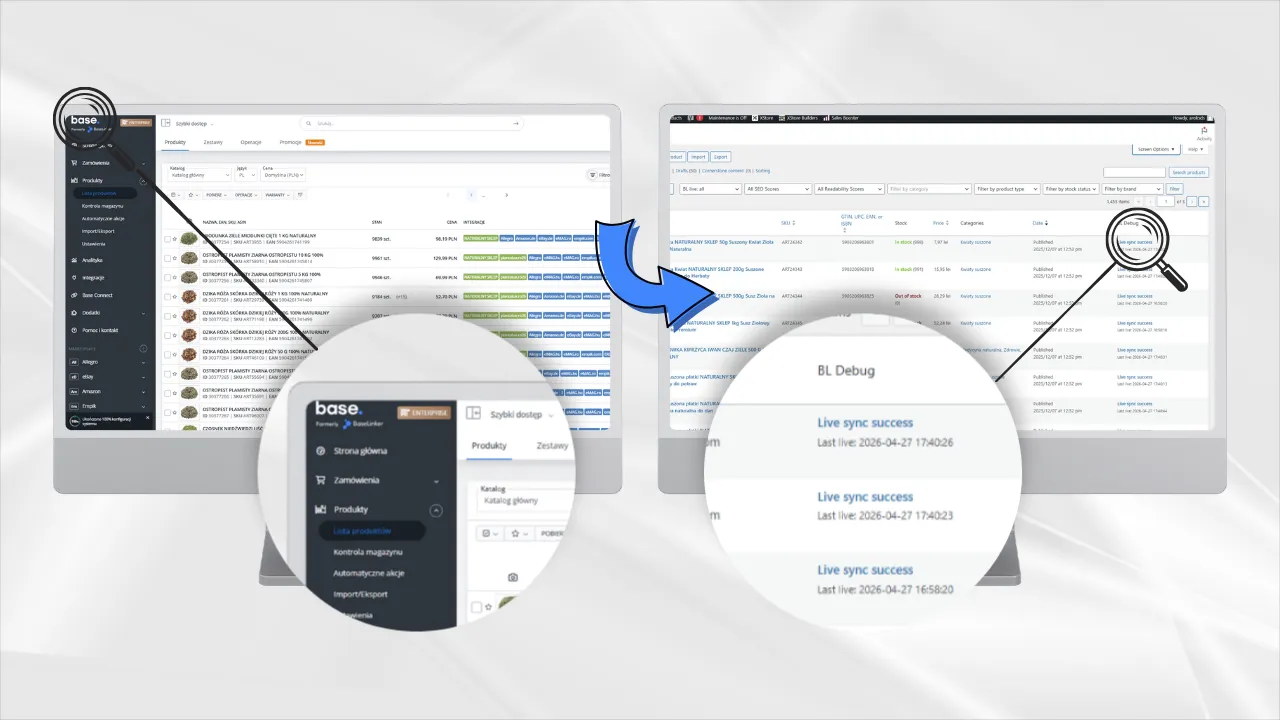
An online store built on WooCommerce needed to be connected to BaseLinker so that products, prices, and stock levels would work consistently. At first, the task looked standard: connect the Plantalux store products with BaseLinker catalogs and start synchronization.
During the work, it became clear that the issue was not only the connection itself. The store already had a history of manual product entry, later imports from BaseLinker, product translations from Polish into Romanian, duplicated SKUs, and partially missing EAN barcodes.
As a result, the task changed from a simple integration into a full cleanup of the product database and the creation of a tool that shows what is really happening during synchronization.
Context
The site runs on WordPress and WooCommerce. Products on the site are in Romanian, while part of the data in BaseLinker was in Polish. Some products were added manually first, and later the catalog was expanded through imports.
Several catalogs were used in BaseLinker:
- main catalog
- TM catalog
- additional catalog
According to the client’s logic, identical products from different brands could have the same SKU. However, the EAN barcode for each product had to be unique.
This was an important detail because WooCommerce expects unique SKUs, while BaseLinker works best when products are linked by a reliable unique code.
Initial Problem
The store showed warnings about duplicated SKUs. Some products did not have EAN values. Some products had EAN values in different fields, but BaseLinker could see only one of them.
It was also unclear:
- which products were already on the site
- which products existed only in BaseLinker
- which products were linked to the store
- which products could not be linked automatically
- whether BaseLinker was actually synchronizing prices and stock
- why some products received zero stock after synchronization
A separate problem was that WooCommerce admin did not provide a convenient way to see the real synchronization state. BaseLinker could show that an operation had been completed, but on the store side it was not clear whether the request had actually reached WordPress and what exactly had been changed. The official BaseLinker plugin does not provide the store administrator with synchronization status information.
What We Did First
The first step was to export the full product list from the store using WP All Export. The export contained 1455 products.
Then we checked:
- whether there were duplicate EAN values
- which products did not have EAN
- which products could be found in BaseLinker catalogs
- which products had the same SKUs
- which SKUs formed product pairs
- which barcodes were duplicated across different catalogs
We found that some products without EAN actually had matching values in the BaseLinker files. For these products, separate files were prepared to fill in EAN values in WooCommerce.
EAN had to be written into two fields:
- the standard WooCommerce field for the global product code
- an additional field used by BaseLinker
After checking the old database, we confirmed that the required additional field used the key _et_gtin.
Working With Products Without EAN
At first, we found 34 products for which EAN could be restored from the provided BaseLinker files. Later, the client added one more catalog, and we managed to find another 19 EAN values.
After additional checks, it became clear that not all of these products could be updated automatically. Some had barcode conflicts or required manual review.
Therefore, risky products were moved to drafts so that they would not create incorrect links or trigger incorrect synchronization.
Why It Was Not Safe to Link Everything Automatically
There were products in BaseLinker where the same EAN appeared more than once. There were also products that matched only by SKU but had different EAN values.
For this store, automatic linking by SKU was unsafe because the SKU could repeat in a product pair. In this project, the reliable key for mass linking was the EAN.
We divided the products into groups:
- safe for mass linking
- with duplicated EAN
- found only by SKU
- drafts without EAN
- products requiring manual review
For safe products, separate linking files were prepared for each BaseLinker catalog.
Mass Product Linking
After preparation, the linking files were uploaded to BaseLinker.
Result:
- 1112 products were linked in the main catalog
- 288 products were linked in the TM catalog
- 5 products were linked in the additional catalog
In total, 1405 out of 1455 products were linked reliably.
50 products remained without automatic linking because they required manual review. These were not random errors, but exactly the items that could not be safely connected in bulk.
Checking Synchronization
After linking the products, we started price and stock synchronization from BaseLinker.
BaseLinker began sending updates to the store. Some products updated successfully, but during mass operations server response errors appeared:
- empty response
- 502 error
- 503 error
- interrupted server response
This showed that the connection between BaseLinker and the store was working, but the server was not always stable enough for mass updates.
We also checked a product that became “out of stock” after synchronization. It turned out that WooCommerce really received stock quantity 0. So the problem was not in how the product was displayed on the site, but in which stock value came from BaseLinker or which warehouse was selected as the source of stock.
Why a Custom Plugin Was Needed
The standard WooCommerce admin does not show what exactly happens during synchronization.
We needed to see:
- whether the BaseLinker request reached WordPress
- whether WooCommerce applied the update
- whether the price changed
- whether the stock changed
- which API user performed the action
- which product received the update
- whether there was an error inside WordPress
- whether the problem happened before the request reached the site
At first, we tried to rely on linking files, but that did not give an honest answer to the main question: whether the product is really synchronizing now.
So we decided to create a separate plugin for live diagnostics.
Solution: Aroks BaseLinker Debugger
For this project, we created a small plugin called Aroks BaseLinker Debugger.
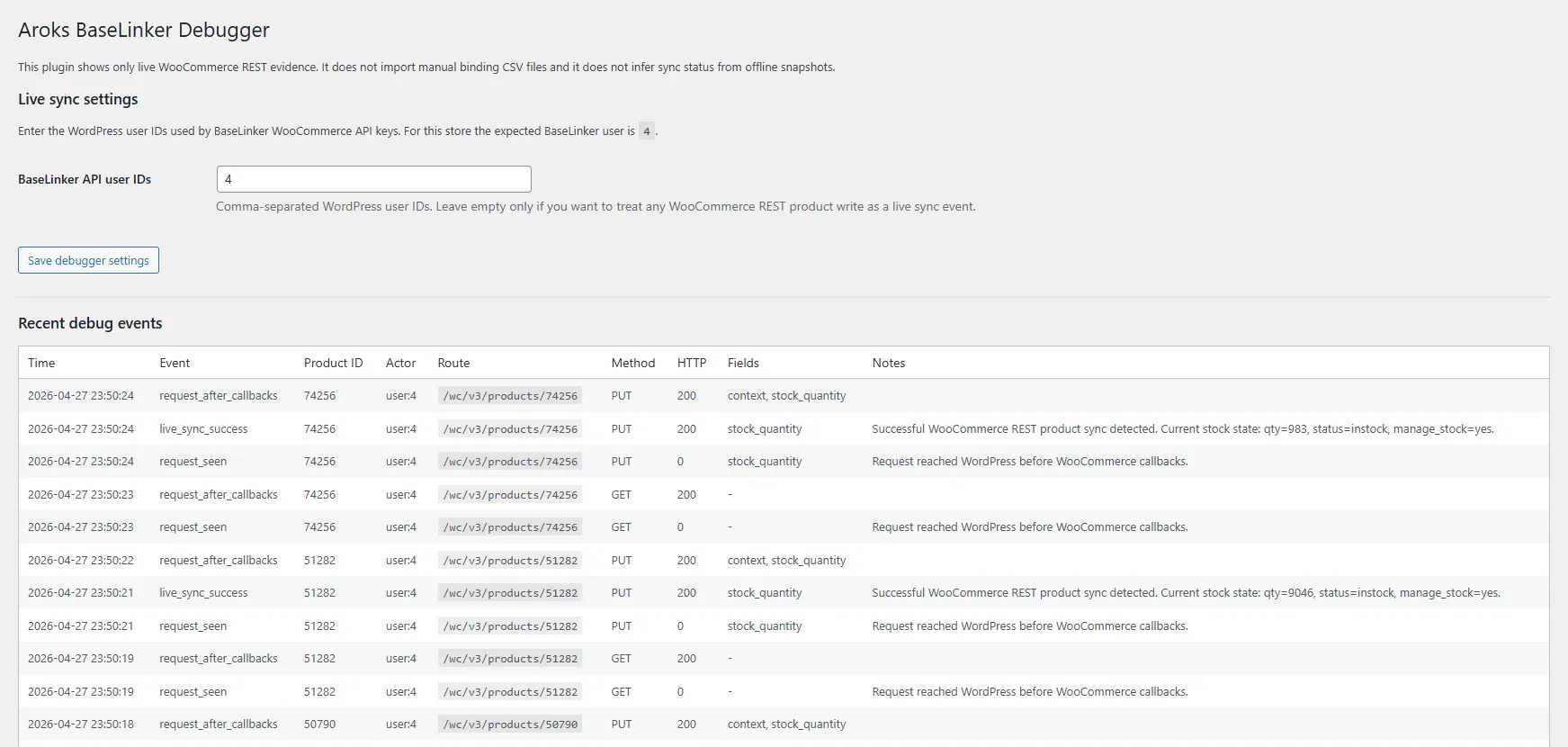
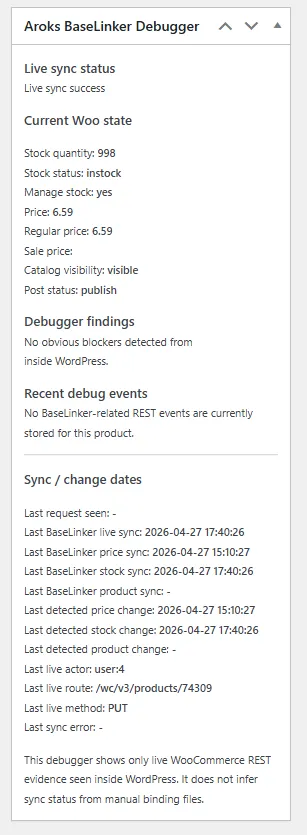
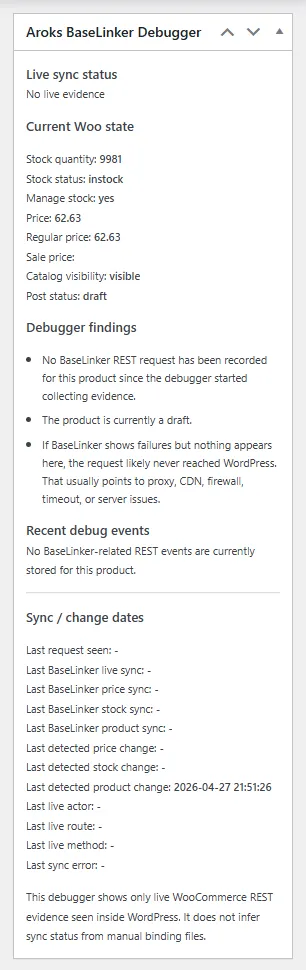
It does not import manual files and does not draw conclusions from old linking lists. The plugin shows only what WordPress actually saw while BaseLinker was working.
The plugin adds the following to WooCommerce admin:
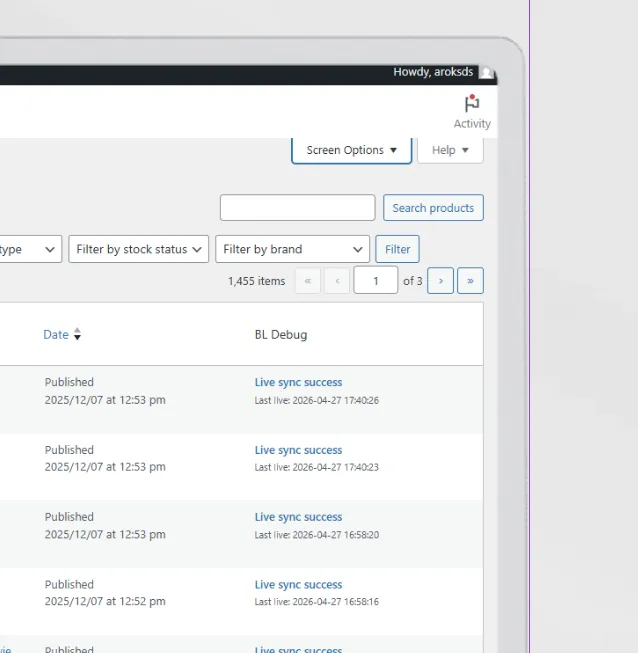
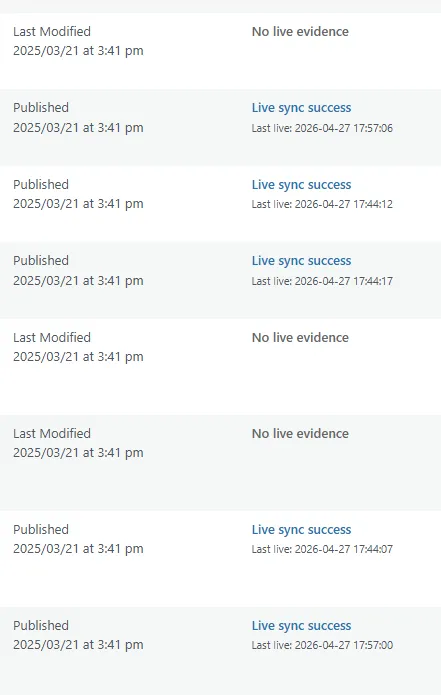
- a synchronization status column
- a product status filter
- a separate block on the product page
- a log of recent events
Main statuses:
- product synchronized successfully
- request was received, but review is needed
- no live synchronization evidence
On the product page, the plugin shows:
- current stock quantity
- stock status
- whether stock management is enabled
- current price
- last price change
- last stock change
- last request from BaseLinker
- last error, if there was one
The plugin is translated into Ukrainian, Polish, and English.
What the Diagnostics Showed
After launching the plugin, it became clear that most products were synchronizing correctly. However, some products had no live synchronization evidence.
We analyzed these products and got a clear picture:
- 19 products were drafts without EAN
- 18 products had EAN but were not linked in BaseLinker because of conflicts
- 13 products matched only by SKU but had a different EAN
- 5 products were linked but had zero stock and did not receive a new update
This made it clear that the problem was not in one place. Some issues were related to data, some to warehouse settings in BaseLinker, and some to server stability during mass updates.
Result
As a result:
- the store catalog was compared with three BaseLinker catalogs
- missing EAN values were found and partially restored
- products with duplicated EAN values were identified
- safe mass product linking was prepared
- 1405 out of 1455 products were linked
- problematic products were moved into separate groups for manual review
- price and stock synchronization was checked
- server limitations during mass updates were identified
- a custom plugin was created to monitor live synchronization
The main result is that the client received not just a BaseLinker connection, but a clear control system. Now it is possible to see which products really synchronized, which need attention, and where to look for the cause of a problem.
What the client received
Connecting BaseLinker to an online store is not always only a matter of settings. If a store already has a history of manual product entry, imports, translations, duplicated SKUs, and different product sources, the data must be cleaned up first.
In this project, we went from checking EAN values and product catalogs to creating a custom diagnostic tool. This made it possible to stop guessing and see the actual picture: what is linked, what is synchronizing, what does not reach WordPress, and what requires a manual decision.
This approach reduces the risk of incorrect updates, wrong stock levels, and product duplication. It also gives the client more control over the store and makes further work with BaseLinker predictable.